1. შესავალი
This manual provides instructions for the KODAK 10.1-inch Digital Photo Frame, Model 1028c. Please read this manual thoroughly before using the device to ensure proper operation and to maximize your experience. This digital photo frame is designed to display photos and videos without requiring a Wi-Fi connection, offering a simple and direct way to enjoy your digital memories.
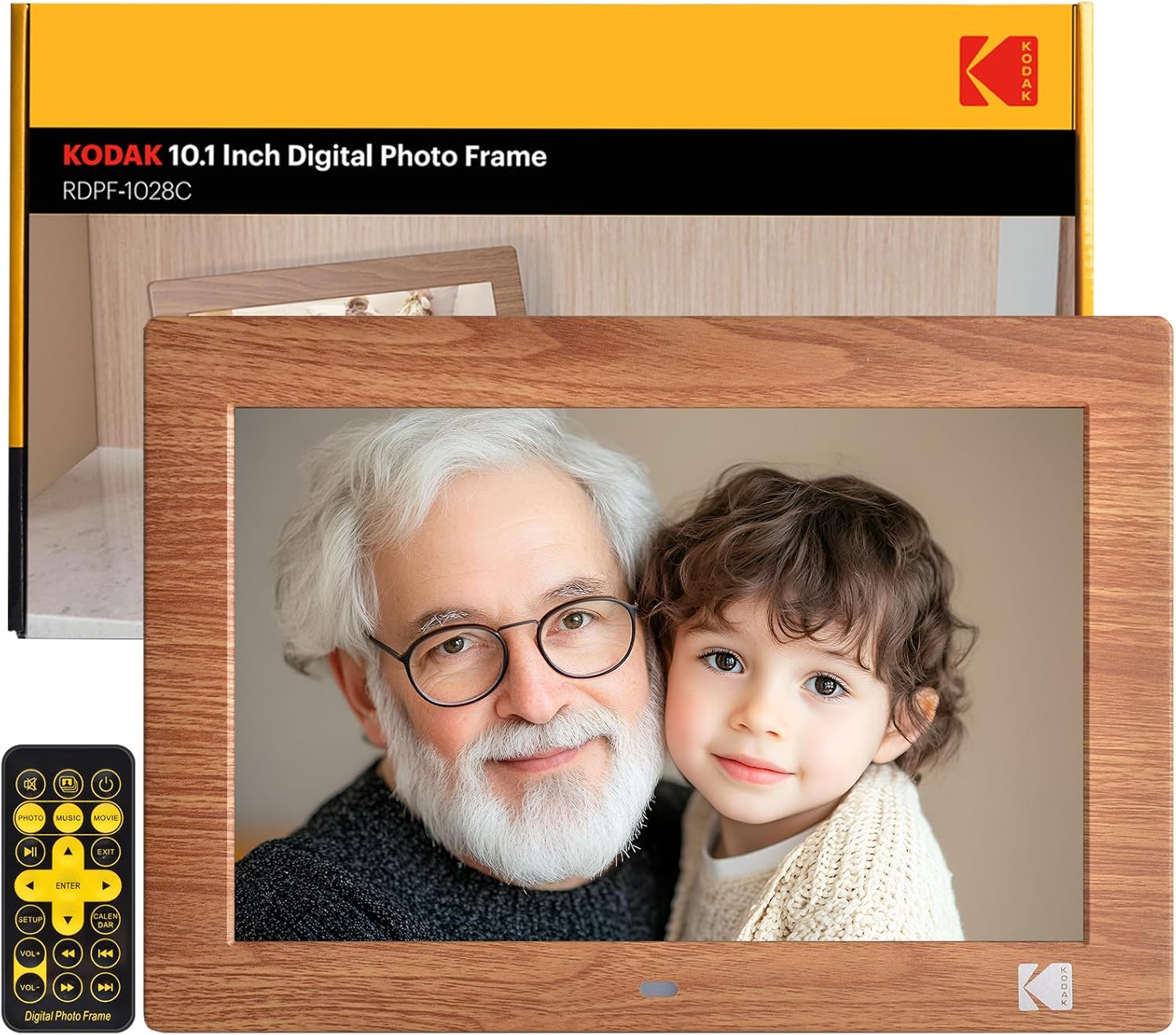
Image: The KODAK 10.1-inch Digital Photo Frame showcasing its vibrant display with a family photo.
2. პროდუქტი დასრულდაview
2.1 ძირითადი მახასიათებლები
- 10.1-inch HD IPS Display: Features a 1280x800 resolution screen with a 16:10 aspect ratio and 178° ultra-wide viewing angle for clear images.
- No Wi-Fi Required: Operates independently without internet connection or app downloads.
- მომხმარებლისთვის მოსახერხებელი ოპერაცია: Simple plug-and-play functionality with USB drives or SD cards (up to 256GB). Includes a remote control for easy navigation.
- მრავალფუნქციური: Supports photo, video, and music playback. Includes calendar, clock, and alarm functions.
- ავტომატური ჩართვა/გამორთვა: Programmable power schedule for convenience.
- მოქნილი განთავსება: Supports horizontal or vertical orientation with auto-rotation, and can be wall-mounted.

Image: Visual representation of the frame's display specifications.
2.2 პაკეტის შიგთავსი
დარწმუნდით, რომ შეფუთვაში ყველა ნივთია:
- KODAK 10.1-inch Digital Photo Frame
- დისტანციური მართვა
- Photo Frame Stand
- მომხმარებლის სახელმძღვანელო (ეს დოკუმენტი)
- DC დენის კაბელი

სურათი: პროდუქტის შეფუთვაში შემავალი ყველა კომპონენტი.
2.3 მოწყობილობის ინტერფეისი
The frame is equipped with multiple ports for connectivity:
- SD ბარათის სლოტი: მხარს უჭერს SD ბარათებს 256 გბ-მდე.
- USB პორტი: For connecting USB flash drives up to 256GB.
- 3.5 მმ ყურსასმენის ჯეკი: აუდიო გამოსასვლელად.
- DC დენის კონექტორი: კვების ადაპტერის დასაკავშირებლად.

სურათი: დეტალური view of the various ports and interfaces on the back of the digital photo frame.
3. დაყენება
3.1 საწყისი ჩართვა
- Connect the DC power cable to the DC power connector on the back of the frame.
- შეაერთეთ დენის ადაპტერი კედლის განყოფილებაში.
- The frame will automatically power on. If not, press the power button on the back of the frame or on the remote control.
3.2 მეხსიერების მოწყობილობების ჩასმა
To display photos and videos:
- Insert a USB flash drive or SD card (pre-loaded with your media files) into the corresponding port on the frame.
- Ensure the storage device is formatted to a compatible file system (e.g., FAT32, exFAT).
- The frame will automatically detect the device and begin playing media.
Image: Demonstrating the simple process of inserting an SD card and USB drive into the frame.
3.3 Frame Placement
The frame can be placed horizontally or vertically, and supports wall mounting:
- დესკტოპის განთავსება: Attach the included photo frame stand to the designated slot on the back for stable desktop use.
- კედელზე მონტაჟი: Use the wall hanging hole on the back of the frame. Ensure appropriate wall anchors and screws are used (not included). The frame features auto-rotation to adjust orientation based on gravity sensing.

Image: Details of the frame's stand and wall mounting options, with examples of display orientation.
4. საოპერაციო ინსტრუქციები
4.1 დისტანციური მართვის გამოყენებით
The included remote control provides full functionality for navigating menus and controlling playback.

Image: Illustrating the use of the remote control for convenient operation.
4.2 მედიის დაკვრა
- ფოტოები: The frame supports JPG, BMP, PNG, GIF, and WEBP formats. Photos will display in a slideshow format.
- ვიდეოები: The frame supports MP4, MKV, MOV, and AVI formats.
- მუსიკა: The frame supports MP3, WMA, OGG, AAC, and FLAC formats. Music can be played as background audio during photo slideshows.
Use the remote control to navigate through files, adjust volume, and control playback (play, pause, next, previous).
4.3 Multifunction Features
Beyond media display, the frame offers additional utilities:
- კალენდარი და საათი: აჩვენეთ მიმდინარე თარიღი და დრო.
- სიგნალიზაცია: დააყენეთ მაღვიძარა შეხსენებებისთვის.
Image: The frame's versatility, showing calendar, automatic on/off, and media playback.
4.4 ავტომატური ჩართვა/გამორთვა
You can program the frame to turn on and off at specific times:
- შედით პარამეტრების მენიუში დისტანციური მართვის გამოყენებით.
- Navigate to the 'Auto On/Off' option.
- Set your desired power-on and power-off times.
Image: Demonstrating the automatic on/off scheduling feature for convenient use.
5. მოვლა
- ეკრანის გაწმენდა: ეკრანი ფრთხილად გაწმინდეთ რბილი, უბუშტო ქსოვილით. ჯიუტი ლაქების შემთხვევაში, ოდნავ გაწმინდეთ.ampქსოვილი წყლით ან ეკრანის საწმენდი ხსნარით გაწმინდეთ. მოერიდეთ უხეში ქიმიკატების გამოყენებას.
- ჩარჩოს გაწმენდა: გაწმინდეთ ჩარჩოს გარე ზედაპირი მშრალი, რბილი ქსოვილით.
- შენახვა: When not in use for extended periods, disconnect the power adapter and store the frame in a cool, dry place.
- მოერიდეთ სითხეებს: ჩარჩო არ მოხვდეს წყალზე ან ჭარბ ტენიანობაზე.
6. Დიაგნოსტიკა
| პრობლემა | შესაძლო მიზეზი | გამოსავალი |
|---|---|---|
| ჩარჩო არ ირთვება. | დენის კაბელი სწორად არ არის შეერთებული; დენის წყაროსთან პრობლემაა. | Ensure power cable is securely connected to both the frame and the outlet. Test the outlet with another device. |
| No pictures or videos displayed. | Storage device not inserted; incompatible file ფორმატი; დაზიანებულია files. | Ensure SD card or USB drive is correctly inserted. Verify media files are in supported formats (JPG, MP4, etc.). Try another storage device or reformat the current one. |
| Frame shuts off unexpectedly. | Automatic On/Off schedule enabled; power supply issue. | Check the 'Automatic On/Off' settings in the menu. Ensure the power adapter is functioning correctly and providing stable power. |
| დისტანციური მართვა არ მუშაობს. | Batteries depleted; obstruction; remote out of range. | Replace remote control batteries. Ensure no obstructions between the remote and the frame's IR receiver. Operate within a reasonable range. |
| Some photos not displaying. | შეუთავსებელი file format (e.g., PNG not recognized); file კორუფცია. | Ensure all photos are in supported formats like JPG. Convert problematic fileსაჭიროების შემთხვევაში. |
7. სპეციფიკაციები
- პროდუქტის ზომები: 8 x 10 x 0.99 ინჩი
- ნივთის წონა: 2.12 ფუნტი
- მოდელის ნომერი: 1028c
- ბრენდი: KODAK
- ეკრანის ზომა: 10.1 ინჩი
- რეზოლუცია: 1280 x 800 (WXGA)
- ასპექტის თანაფარდობა: 16:10
- Viewკუთხე: 178° IPS
- თავსებადი მოწყობილობები: Personal Computer, SD Card, USB Flash Drive
- მხარდაჭერილი ფოტო ფორმატები: JPG, BMP, PNG, GIF, WEBP
- მხარდაჭერილი ვიდეო ფორმატები: MP4, MKV, MOV, AVI
- მხარდაჭერილი მუსიკის ფორმატები: MP3, WMA, OGG, AAC, FLAC
- შენახვის მხარდაჭერა: SD Card (up to 256GB), USB Flash Drive (up to 256GB)
8. გარანტია და მხარდაჭერა
KODAK provides professional technical support and after-sales service for this product. For assistance, please refer to the contact information provided with your purchase or visit the official KODAK support webსაიტი.
8.1 პროდუქტის ვიდეოები
For visual guidance on setup and features, please refer to the following official product videos:
ვიდეო: გენერალი დასრულდაview and features of the KODAK Digital Photo Frame.
Video: Detailed demonstration of the frame's functionalities.
Video: Vertical orientation display and usage examples.
Video: Quick guide to setting up and using the frame.
Video: Exploring the various display modes and settings.
Video: Tips for optimizing your photo and video display.
Video: Comprehensive guide to all features and controls.
Video: Extended tutorial on advanced settings and customization.
Video: Short demonstration of key features in vertical mode.
ვიდეო: სწრაფად დასრულდაview of the frame's user interface.