1. შესავალი
The Havit MS966SE is a high-performance tri-mode gaming mouse designed for versatility, precision, and comfort. It features a PixArt PMW3325 optical sensor, offering exceptional tracking accuracy and adjustable DPI settings up to 10,000. With its tri-mode connectivity, you can seamlessly switch between 2.4GHz wireless, Bluetooth 5.3, and USB-C wired modes to suit your gaming or work environment. The lightweight and ergonomic design ensures comfortable use during extended sessions, complemented by dynamic RGB lighting for a personalized aesthetic.

Figure 1: Havit MS966SE Gaming Mouse with USB-C cable.
2. დაყენება
2.1 შეფუთვა
Carefully remove the mouse and all accessories from the packaging. Ensure all components are present:
- Havit MS966SE Gaming Mouse
- USB-C to USB-A კაბელი
- 2.4GHz USB მიმღები
- მომხმარებლის სახელმძღვანელო (ეს დოკუმენტი)
2.2 მაუსის შეერთება
The MS966SE offers three connectivity options:
2.2.1 2.4 გჰც უსადენო რეჟიმი
- Insert the 2.4GHz USB receiver into an available USB-A port on your computer.
- Locate the mode switch on the bottom of the mouse and slide it to the 2.4 გ პოზიცია.
- The mouse will automatically connect to your computer.
2.2.2 Bluetooth 5.3 რეჟიმი
- Locate the mode switch on the bottom of the mouse and slide it to the BT პოზიცია.
- თქვენს კომპიუტერზე ან მობილურ მოწყობილობაზე გახსენით Bluetooth-ის პარამეტრები და მოძებნეთ ახალი მოწყობილობები.
- Select "Havit MS966SE" from the list of available devices to pair.
2.2.3 USB-C სადენიანი რეჟიმი
- Connect one end of the provided USB-C cable to the mouse and the other end to an available USB-A port on your computer.
- მაუსი ავტომატურად გადავა სადენიან რეჟიმში და დაიწყებს დატენვას.
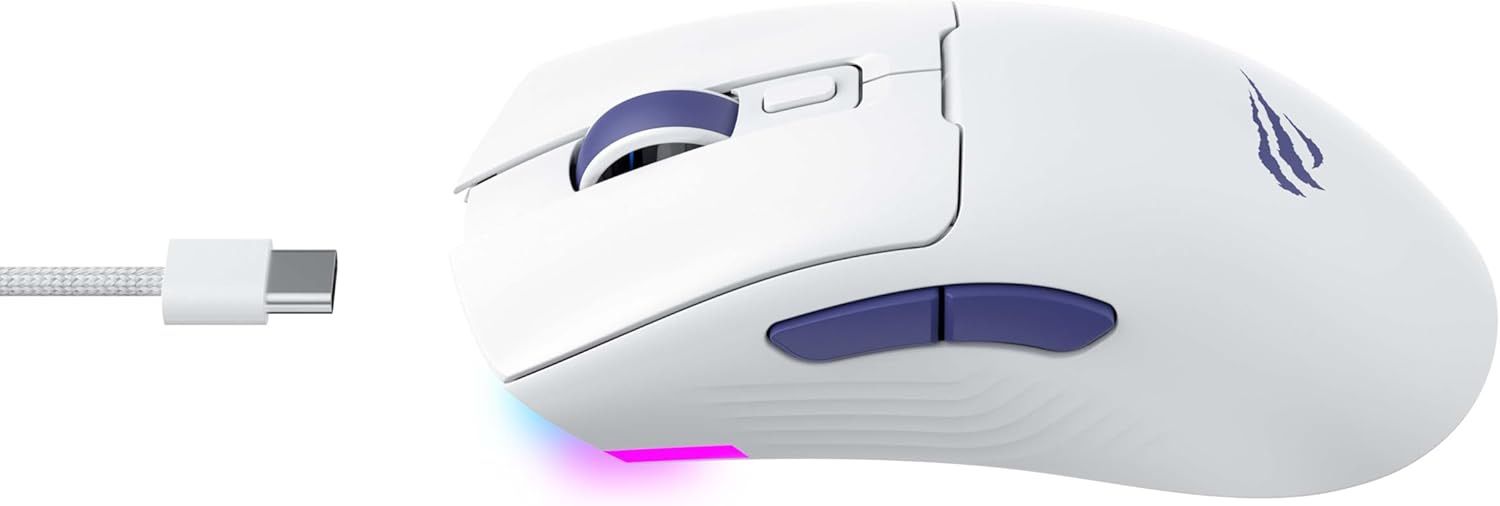
სურათი 2: მხარე view of the mouse, highlighting the USB-C port.
2.3 მაუსის დატენვა
To charge the mouse, connect it to your computer using the USB-C cable. The mouse can be used in wired mode while charging. An indicator light on the mouse will show the charging status (refer to the manufacturer's website or product packaging for specific light behaviors).
3. საოპერაციო ინსტრუქციები
3.1 ღილაკის ფუნქციები
The Havit MS966SE features several programmable buttons for enhanced control:
- მარცხენა დაწკაპუნების ღილაკი: სტანდარტული პირველადი დაწკაპუნების ფუნქცია.
- მარჯვენა ღილაკით დაწკაპუნება: სტანდარტული მეორადი დაწკაპუნების ფუნქცია.
- გადახვევის ბორბალი: Scrolls up/down, and acts as a middle click button.
- DPI ციკლის ღილაკი: გადახვევის ბორბლის უკან მდებარე ეს ღილაკი ციკლურად არეგულირებს DPI მგრძნობელობის წინასწარ განსაზღვრულ დონეებს.
- გვერდითი ღილაკები (წინ/უკან): როგორც წესი, ნავიგაციისთვის გამოიყენება web browsers or can be programmed for in-game actions.

Figure 3: Side buttons and ergonomic design.
3.2 DPI რეგულირება
The PixArt PMW3325 sensor allows for adjustable DPI settings up to 10,000. Press the DPI cycle button (located behind the scroll wheel) to switch between different sensitivity levels. Each press will cycle to the next preset DPI, allowing you to quickly adapt to various tasks or game scenarios.
3.3 კავშირის რეჟიმის გადართვა
To switch between 2.4GHz wireless, Bluetooth, and wired modes, use the physical switch located on the bottom of the mouse. Ensure the correct mode is selected based on your connection preference.
3.4 RGB განათება
The mouse features dynamic RGB lighting. Specific controls for RGB lighting effects, colors, and brightness may be available through dedicated software provided by Havit. Please visit the official Havit website for software downloads and further customization options.
4. მოვლა
4.1 დასუფთავება
- გაწმენდის დაწყებამდე მაუსი გამორთეთ კომპიუტერიდან.
- მაუსის ზედაპირის გასაწმენდად გამოიყენეთ რბილი, მშრალი, უბუშტუკო ქსოვილი.
- ჯიუტი ჭუჭყისთვის, ოდნავampქსოვილი წყლით ან რბილი საწმენდი ხსნარით გაწმინდეთ. მოერიდეთ უხეში ქიმიკატების გამოყენებას.
- ღილაკებისა და გადახვევის ბორბლის ირგვლივ არსებული ზედაპირის გასაწმენდად გამოიყენეთ ბამბის ტამპონი ან შეკუმშული ჰაერი.
- Do not immerse the mouse in water or any liquid.
4.2 შენახვა
When not in use for extended periods, store the mouse in a cool, dry place away from direct sunlight and extreme temperatures. If storing for a long time, ensure the mouse is fully charged to maintain battery health.
5. Დიაგნოსტიკა
5.1 მაუსი არ რეაგირებს
- შეამოწმეთ სიმძლავრე: დარწმუნდით, რომ მაუსი ჩართულია და მისი ბატარეა საკმარისად დატენილია.
- შეამოწმეთ კავშირი:
- სადენიანი რეჟიმი: Ensure the USB-C cable is securely connected to both the mouse and the computer. Try a different USB port.
- 2.4 გჰც უსადენო: Ensure the USB receiver is properly inserted and the mouse is set to 2.4G mode. Try a different USB port for the receiver.
- Bluetooth რეჟიმი: Ensure Bluetooth is enabled on your device and the mouse is paired. Try unpairing and re-pairing the mouse.
- გადატვირთვა: გადატვირთეთ კომპიუტერი და მაუსი.
5.2 DPI არ იცვლება
- Ensure you are pressing the correct DPI cycle button.
- If using custom software, check the DPI settings within the software.
5.3 Lag or Disconnections in Wireless Mode
- ჩარევა: Move the mouse closer to the receiver/device. Avoid obstacles between the mouse and receiver.
- ბატარეის დონე: ბატარეის დაბალმა დამუხტვამ შეიძლება გავლენა მოახდინოს უკაბელო ქსელის მუშაობაზე. დატენეთ მაუსი.
- USB პორტი: Try connecting the 2.4GHz receiver to a different USB port, preferably a USB 2.0 port if available, as some USB 3.0 ports can cause interference.
6. სპეციფიკაციები
| ბრენდი | ჰავიტი |
| მოდელი | MS966SE |
| დაკავშირების ტექნოლოგია | Tri-Mode: 2.4GHz Wireless, Bluetooth 5.3, USB-C Wired |
| სენსორის ტექნოლოგია | ოპტიკური (PixArt PMW3325) |
| DPI დონეები | Up to 10,000 adjustable DPI |
| განსაკუთრებული თვისებები | Ergonomic Design, Dynamic RGB Lighting |
| თავსებადი ოპერაციული სისტემები | Windows, macOS, Linux |
| თავსებადი მოწყობილობები | Notebook, Personal Computer, Tablet, Smartphone |
| მაუსის წონა | დაახლოებით 68 გრამი |
| ბატარეის ტიპი | ლითიუმ-იონი |
7. გარანტია და მხარდაჭერა
7.1 ინფორმაცია გარანტიის შესახებ
This Havit MS966SE Gaming Mouse comes with a 1 წლიანი მწარმოებლის გარანტიაგთხოვთ, შეინახოთ შეძენის დამადასტურებელი საბუთი გარანტიის შემთხვევაში. გარანტია მოიცავს მასალებისა და დამუშავების დეფექტებს ნორმალური გამოყენების შემთხვევაში.
7.2 მომხმარებელთა მხარდაჭერა
For technical assistance, troubleshooting beyond this manual, or warranty inquiries, please contact Havit customer service directly. You can find the most up-to-date contact information and support resources on the official Havit webსაიტი (www.havit.com).


