1. შესავალი
The SONICAKE QME-20 Smart Box is a compact and powerful multi-effects processor designed for guitarists, bassists, and acoustic players. It integrates a wide array of effects, amp models, and utility features into a portable unit, making it suitable for practice, recording, and live performance. This manual provides detailed instructions to help you maximize your experience with the QME-20 Smart Box.
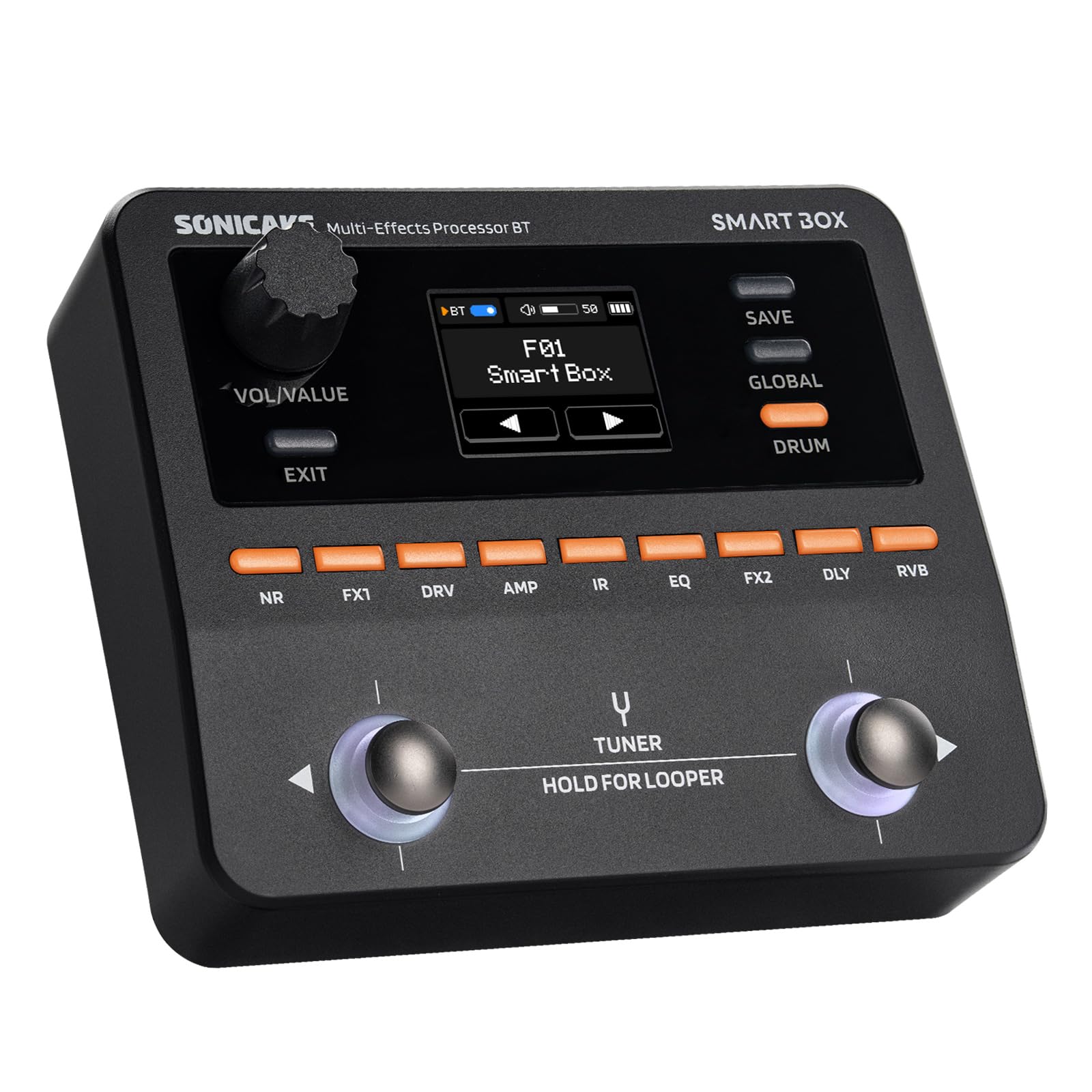
Image 1.1: The SONICAKE QME-20 Smart Box positioned on an electric guitar, showcasinმისი კომპაქტური დიზაინი და მომხმარებლის ინტერფეისი.
2. ძირითადი მახასიათებლები
The QME-20 Smart Box offers a comprehensive suite of features:
- მრავალ ეფექტის დამუშავება: Features 9 simultaneous effect modules and over 130 high-quality effects, including amp, cabinet IR, EQ, delay, and reverb.
- წინასწარ დაყენებული მენეჯმენტი: 100 preset slots available for storing and recalling your custom tones.
- Advanced Tone Customization: Utilizes proprietary white-box digital modeling for superior sound clarity. Supports third-party NAM (Neural Amp Model) and cabinet IR (Impulse Response) files for expanded tonal possibilities.
- Connectivity & Control: Includes Sonicake Manager software for PC/Mac and the Soniclink mobile app for deep editing, preset management, and IR/NAM uploads.
- USB აუდიო ინტერფეისი: Functions as a USB audio interface with loopback and re-amp support for recording and practice.
- შესრულების ინსტრუმენტები: Built-in 20-second looper, chromatic tuner, metronome, and 100 drum rhythms.
- Intuitive Footswitches: Dedicated footswitches with multi-color LED rings for stompbox-style toggling and tap tempo control.
- Versatile I/O: True stereo TRS outputs, headphone jack, EXP/FS TRS jack for external expression pedals or footswitches, USB-C, and wireless BT-MIDI.
- დენის პარამეტრები: Powered via 9V DC adapter or USB. Features a built-in 2000mAh rechargeable battery for up to 3.5 hours of portable operation.

სურათი 2.1: დასრულდაview of the Smart Box's extensive effect modules and compatibility.
3. დაყენების გზამკვლევი
3.1 გახსნა და პირველადი შემოწმება
Carefully remove the QME-20 Smart Box from its packaging. Inspect the unit for any signs of damage. Ensure all components are present: the Smart Box unit, USB-C cable, and power adapter (if included).
3.2 მოწყობილობის ჩართვა
The QME-20 Smart Box can be powered in two ways:
- Via 9V DC Power Adapter: Connect the included 9V DC power adapter to the 9V DC input jack on the rear of the unit. Plug the adapter into a standard wall outlet.
- USB-C-ის საშუალებით: Connect the USB-C cable to the USB-C port on the unit and to a compatible USB power source (e.g., computer, USB wall adapter).
- შიდა ბატარეა: The unit has a built-in rechargeable battery. Ensure it is charged for portable use.
3.3 Connecting Your Instrument and Audio Output
Refer to the diagram below for port identification.

Image 3.1: Rear panel connections of the SONICAKE QME-20 Smart Box.
- შეაერთეთ თქვენი გიტარა ან ბასი IN (Input) jack using a standard 1/4-inch instrument cable.
- For stereo output, connect the STEREO OUT (Output) jacks to your amplifier, mixer, or audio interface using 1/4-inch TRS cables. For mono, use the left output.
- ჩუმი ვარჯიშისთვის, ყურსასმენები შეაერთეთ ტელეფონები (Headphone) jack using a 3.5mm stereo cable.
- To use an external expression pedal or footswitch, connect it to the EXP/FS ჯეკი.
- For computer connectivity (USB Audio Interface, software control), connect the USB port to your computer using the provided USB-C cable.
3.4 Software and App Installation
To unlock the full potential of the QME-20, download and install the following:
- Sonicake Manager (PC/Mac): Visit the official SONICAKE website to download the latest software for deep editing and preset management.
- Soniclink Mobile App: ძიება "Soniclink" on your mobile device's app store (iOS/Android) to control the unit wirelessly via Bluetooth.
4. საოპერაციო ინსტრუქციები
4.1 Basic Navigation and Presets
The QME-20 features a clear display and intuitive controls.

Image 4.1: Seamless tone editing via the full-color screen and LED-lit buttons.
- VOL/VALUE Knob: Controls the overall output volume and adjusts parameter values when editing effects.
- EXIT ღილაკი: Returns to the previous menu or exits editing mode.
- SAVE ღილაკი: Saves current settings to a preset slot.
- გლობალური ღილაკი: Accesses global settings such as input/output levels, Bluetooth, and system preferences.
- DRUM ღილაკი: Activates the drum machine and metronome functions.
- ფეხის ჩამრთველები: The two main footswitches (left and right) are used for navigating presets, engaging/disengaging effects, and controlling the looper. Their function changes based on the selected mode.
4.2 Effect Modules and Editing
The QME-20 organizes effects into 9 modules, each with dedicated buttons (NR, FX1, DRV, AMP, IR, EQ, FX2, DLY, RVB).
- Press an effect module button to toggle it on/off within the current preset.
- Hold an effect module button to enter its editing parameters. Use the VOL/VALUE knob to adjust parameters and the EXIT button to return.
- The Sonicake Manager software and Soniclink app provide a more visual and detailed interface for editing effects and managing presets.
4.3 Tuner, Looper, and Drum Machine
- ტიუნერი: Press both footswitches simultaneously to activate the chromatic tuner. Strum a string, and the display will show the note and tuning accuracy. Press either footswitch again to exit.
- Looper: Hold the right footswitch (labeled "HOLD FOR LOOPER") to enter looper mode.
- Drum Machine/Metronome: Press the DRUM button to access drum rhythms and metronome settings. Use the VOL/VALUE knob to select patterns and adjust tempo.
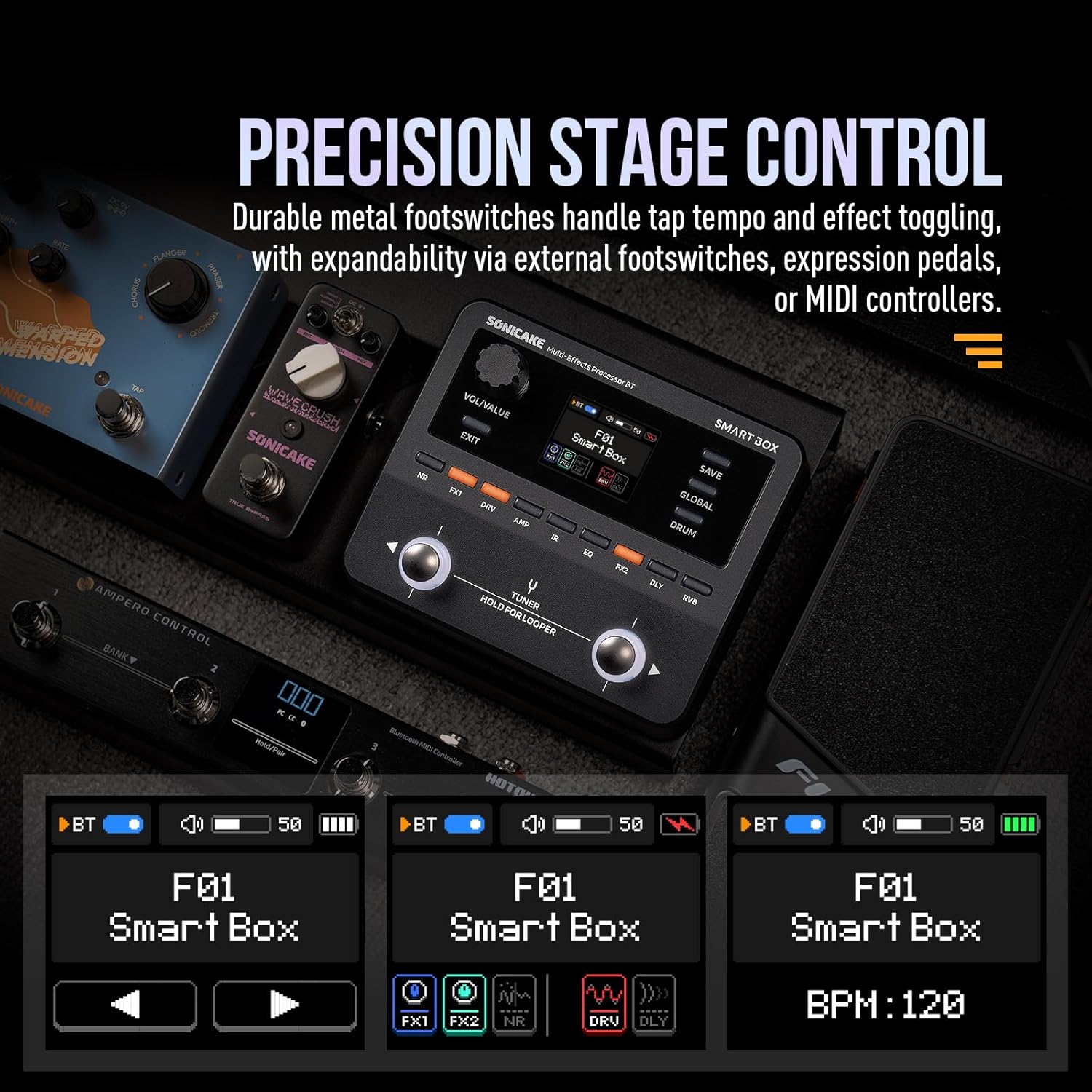
Image 4.2: The QME-20 Smart Box integrates with external footswitches and expression pedals for enhanced stage კონტროლი.
4.4 USB აუდიო ინტერფეისის ფუნქციონალი
When connected to a computer via USB-C, the QME-20 acts as an audio interface. This allows you to:
- Record your guitar directly into a DAW (Digital Audio Workstation).
- Use the re-amp function to send dry guitar signals back through the QME-20 for processing.
- Utilize the loopback function to record audio playing on your computer along with your guitar.
4.5 Bluetooth კავშირი
The QME-20 supports Bluetooth for wireless control via the Soniclink mobile app and for audio playback (BT-MIDI). Refer to the app's instructions for pairing and control.
5. მოვლა
5.1 დასუფთავება
To clean the unit, use a soft, dry cloth. Do not use abrasive cleaners, waxes, or solvents. Avoid spraying liquids directly onto the unit.
5.2 შენახვა
When not in use for extended periods, store the QME-20 Smart Box in a cool, dry place away from direct sunlight and extreme temperatures. Disconnect all cables and ensure the unit is powered off.
5.3 ბატარეის მოვლა
The built-in rechargeable battery should be fully charged before first use. For optimal battery life, avoid completely discharging the battery frequently. If storing for a long time, charge the battery to approximately 50% every few months.
6. Დიაგნოსტიკა
If you encounter issues with your QME-20 Smart Box, refer to the following common problems and solutions:
| პრობლემა | შესაძლო მიზეზი | გამოსავალი |
|---|---|---|
| არავითარი ძალა | Power adapter not connected, battery discharged, faulty cable. | Ensure power adapter is securely connected and plugged in. Charge the internal battery. Try a different USB-C cable or power source. |
| ხმის გამომავალი არ არის | Incorrect connections, volume too low, effects bypassed. | Check all instrument and output cable connections. Increase the VOL/VALUE knob. Ensure desired effects/amp models are engaged. Check global output settings. |
| დამახინჯებული ან ცუდი ხმის ხარისხი | Input/output levels too high, faulty cables, incorrect impedance. | Adjust input and output levels in global settings. Try different cables. Ensure your amplifier/mixer input is appropriate for the QME-20's output. |
| Bluetooth-ით დაკავშირება შეუძლებელია | Bluetooth not enabled, device not in pairing mode, interference. | Ensure Bluetooth is enabled on the QME-20 (check global settings) and your mobile device. Put the QME-20 into pairing mode if necessary. Move closer to the unit. |
| ლუპერი არ იწერს/არ უკრავს | Incorrect looper mode, memory full. | Ensure you are in looper mode. Check looper settings. The looper has a 20-second limit. |
If the problem persists, please contact SONICAKE customer support.
7. სპეციფიკაციები
| ფუნქცია | დეტალი |
|---|---|
| მოდელის ნომერი | QME-20 |
| ზომები (L x W x H) | 5.51 x 2.36 x 5.91 ინჩი (დაახლოებით 140 x 60 x 150 მმ) |
| წონა | 15.2 უნცია (430 გრამი) |
| ელექტრომომარაგება | 9V DC (2000mA recommended) or USB-C |
| ბატარეა | Built-in 2000mAh rechargeable battery (up to 3.5 hours operation) |
| Effects Modules | 9 simultaneous modules |
| Total Effects | 130+ |
| წინასწარ დაყენებული სლოტები | 100 |
| Looper Time | 20 წამი |
| დრამის რითმები | 100 |
| შეყვანა | 1/4-inch TS Instrument Input |
| გამომავალი | 1/4-inch TRS Stereo Output |
| ყურსასმენის ამოღება | 3.5 მმ სტერეო ყურსასმენის გამომავალი |
| Expression/Footswitch | 1/4-inch TRS EXP/FS Jack |
| USB ინტერფეისი | USB-C for Audio Interface and Software Control |
| უსადენო კავშირი | Bluetooth (BT-MIDI) |
8. პროდუქტის ვიდეოები
The following videos provide additional information and demonstrations of the SONICAKE QME-20 Smart Box. These videos are provided by the seller to enhance your understanding of the product's features and operation.
ვიდეო 8.1: პროდუქტი დასრულდაview and Demonstration (7:01)
ეს ვიდეო გთავაზობთ ყოვლისმომცველ მიმოხილვასview of the SONICAKE QME-20 Smart Box, demonstrating its various features and sound capabilities.
Video 8.2: Feature Spotlight (3:54)
A closer look at some of the key functionalities and effects offered by the QME-20 Smart Box.
Video 8.3: Sound Samples (2:20)
Listen to various tones and effects produced by the QME-20 Smart Box in different musical contexts.
Video 8.4: Advanced Usage Tips (9:19)
This video delves into more advanced settings and creative applications of the QME-20 Smart Box.
Video 8.5: Looper and Drum Machine Tutorial (5:32)
A detailed guide on how to use the built-in looper and drum machine features of the QME-20 Smart Box.
Video 8.6: Connectivity and Software Integration (9:15)
This video explains how to connect the QME-20 to various devices and utilize its software control features.
Video 8.7: Quick Start Guide (1:30)
A concise video to help you get started quickly with your QME-20 Smart Box.
Video 8.8: NAM/IR Loading Tutorial (1:08)
Learn how to load third-party NAM and IR files onto your QME-20 Smart Box for expanded tonal options.
Video 8.9: Preset Creation and Management (2:02)
This video guides you through the process of creating, editing, and managing your custom presets on the QME-20 Smart Box.
Video 8.10: Full Product Review (9:56)
სიღრმისეული მიმოხილვაview of the QME-20 Smart Box, covering its performance, features, and overall value.
9. გარანტია და მხარდაჭერა
9.1 ინფორმაცია გარანტიის შესახებ
The SONICAKE QME-20 Smart Box comes with a standard manufacturer's warranty. Please refer to the warranty card included with your product or visit the official SONICAKE webსაიტზე დეტალური გარანტიის პირობებისთვის.
9.2 მომხმარებელთა მხარდაჭერა
For technical assistance, troubleshooting beyond this manual, or warranty claims, please contact SONICAKE customer support through their official website or the contact information provided in your product packaging. When contacting support, please have your product model number (QME-20) and purchase details ready.


